Thursday, 18 December 2014

What is a Hypervisor

It is a program that allows multiple operating systems to share a single hardware host. Each operating system appears to have the host's processor, memory, and other resources all to itself. However, the hypervisor is actually controlling the host processor and resources, allocating what is needed to each operating system in turn and making sure that the guest operating systems (called virtual machines) cannot disrupt each other.


What is the hardware version used in VMware ESXi 5.5

Version 10

Below is the table showing the different version of hardware used in different VMware products along with their release version

Virtual Hardware Version
Products
10
ESXi 5.5, Fusion 6.x, Workstation 10.x, Player 6.x
9
ESXi 5.1, Fusion 5.x, Workstation 9.x, Player 5.x
8
ESXi 5.0, Fusion 4.x, Workstation 8.x, Player 4.x
7
ESXi/ESX 4.x, Fusion 2.x/3.x Workstation 6.5.x/7.x,Player 3.x
6
Workstation 6.0.x
4
ACE 2.x, ESX 3.x, Fusion 1.x, Player 2.x
3 and 4
ACE 1.x, Player 1.x, Server 1.x, Workstation 5.x, Workstation 4.x
3
ESX 2.x, GSX Server 3.x

Friday, 5 December 2014

Recover data from VMFS/VMware disks

Vmfs Recovery offers a safe, easy way to recover information stored on VMFS-formatted disks. Like any other storage media, VMware disks can get damaged by software and hardware faults. Bad blocks and physical corruption of hard drives storing the virtual disk images can also cause corruption to VMware images.

Recover Information from Healthy and Damaged VMFS Drives

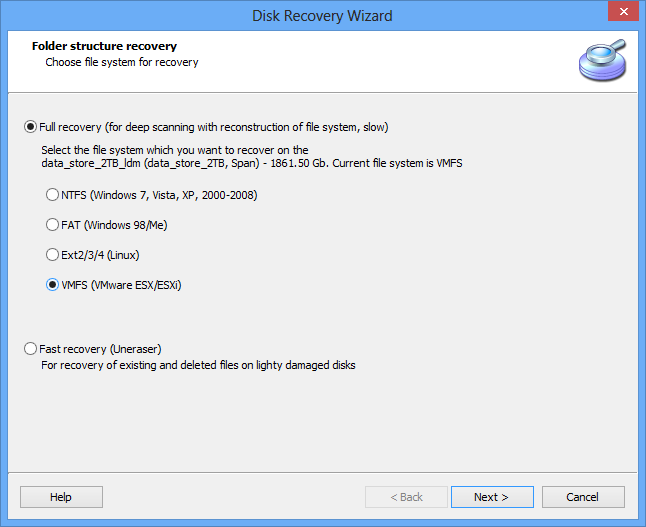
Vmfs Recovery can recover data from healthy and corrupted virtual disk images used by VMware vSphere 5, ESX/ESXi VMware(R) ESX Server(tm) in fully automated mode. As VMware employs VMFS, its very own file system to store virtual machines, Vmfs Recovery works equally well in quick and full recovery modes.

Recover VMDK Disks from ESX Servers

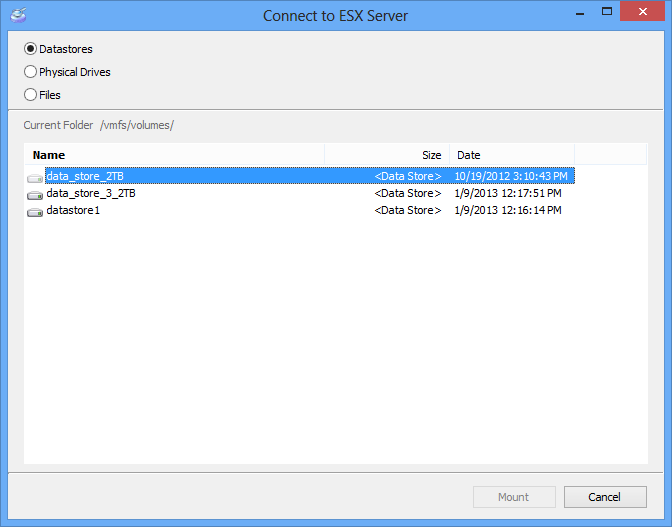
Recovering VMDK images from ESX servers is a two-step process. First, Vmfs Recovery will repair the ESX/ESXi storage to gain access to individual virtual PCs stores in these partitions. After that, individual virtual machines represented with their VMDK disks can be extracted, and a standard data recovery process can be launched.

Remote Recovery

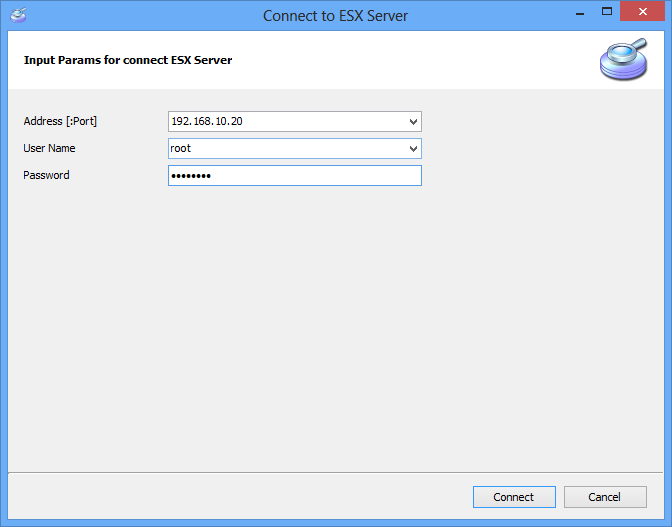
Information is retrieved online over the network without the need to physically access the actual server hosting the virtual PCs. There’s absolutely no need to shut down the host computer or remove hard drives containing the virtual servers.

Recover VMware Partitions from Damaged Hard Drives and Faulty RAID Arrays

VMFS disks can be recovered from damaged, corrupted and inaccessible physical hard drives and RAID arrays, including corrupted RAIDs and broken arrays with or without the original RAID controller installed.

Fully Automated VMFS Recovery

VMFS disks can be recovered from damaged, corrupted and inaccessible physical hard drives and RAID arrays, including corrupted RAIDs and broken arrays with or without the original RAID controller installed.

What Can Be Recovered

  • VMDK images from healthy and corrupted VMFS disks created in all versions of ESX Server or VMware
  • VMFS drives stored on working or faulty RAID arrays, with or without the original RAID controller present
  • VMFS drives stored on corrupted and inaccessible hard drives
  • VMDK images stored in disks formatted by VMware(R) ESX Server(tm)

Compatibility

  • VMFS partitions created in VMware vSphere 5 and ESX/ESXi VMware(R) ESX Server(tm)
  • VMFS3 and VMFS5 support
  • Supports files up to 2TB
  • VMFS5 drives with more than 100,000 files
  • VMFS partitions up to 64TB
  • Unicode file names in VMFS5
  • VMFS drives stored on all types of RAID arrays including RAID JBOD, 0, 1, 1E, RAID 4, RAID 5, RAID 5R, 0+1 and 1+0
  • VMFS partitions stored on hardware and integrated RAID arrays
  • Runs in all versions of Windows 7, 2008 R1/R2, Vista/XP/2000

Features

  • Two modes of operation: quick and full recovery
  • Fully guided, step-by-step recovery wizard
  • Saves recovered files and folders on local or remote locations
  • Supports FTP upload and can burn recovered data onto CD & DVD discs
  • Can mount virtual disks to system as drive letters (will be accessible with Explorer and all other browsers and file utilities)
  • Recovers information bypassing Windows access restrictions
  • Supports long and international file names and folders with multiple sub-folders
  • Recovers VMDK images from corrupted VMFS partitions stored on corrupted RAID arrays with or without the original RAID controller
  • Supports all the features of Raid Recovery

Compatibility

Diskinternals Vmfs Recovery supports VMFS partitions created in VMware vSphere 5 and ESX/ESXi drives created in VMware(R) ESX Server(tm). Vmfs Recovery supports Windows 7 and 2008 Server R1/R2, as well as Windows 2000, XP, 2003 Server, and Windows Vista. All types of internal and external hard drives and RAID arrays are supported, with or without the original RAID controller.

VMware ESX – How to easily recreate a missing or corrupt VMX file.


Now you could manually recreate a missing or corrupt VMX file (restoring one from a backup would be the best solution) but a quick and easy way for recreating it is to create a new VM within the VMware Infrastructure Client (VIC) or via CLI/RCLI.  During the creation process point the new VM’s drives to the existing disk (VMDK) files of the server with the corrupt/missing VMX file.
Below are the basic steps for doing this via the VMware Infrastructure Client interface.
Before beginning to start the process to recreate the VMX file, if it exists, remove the VM from the VMware Infrastructure Clients inventory list (right click on the VM and select ‘Remove from Inventory’). Also if you are trying to replace a corrupted VMX file then rename (preferable option) or delete the offending VMX file.
First start the ‘New Virtual Machine Wizard’ and select a ‘Virtual Machine Configuration’ type of ‘Custom’. 
image
The next page of the wizard will ask for a ‘Name’ for the new VM.  Make sure the name you type in here matches the name of the directory on your VMFS partition that hosts the VM with the missing/corrupt VMX file. 
If you enter in a different name here the New Virtual Machine Wizard will create a directory of that name that will contain the VMX file (along with a couple of other files important to the running of the VM) whilst your disk (VMDK) file(s) could be located in another directory.  Although there are potentially situations where you may want to keep your disk and configuration files separate I would personally recommend keeping them all together to reduce the risk of any future confusion and accidental moves or deletions of these VM related files.
image 
The next screen of the Wizard asks for you to select the location of the datastore.  As mentioned above, in most situations it is best to select the same LUN/Disk on which the VMDK (disk) files are located.
image
Now proceed through the next few steps of the Wizard selecting and adjusting (if required) any of the VM configuration parameters (eg: Guest OS, number of virtual processors, memory, etc).
When you get to the ‘Select a Disk’ screen then select ‘Use an existing virtual virtual disk’ and select the primary VMDK boot disk file for the VM with the missing/corrupt VMX file. 
image
Proceed through the rest of the Wizard until you get to the ‘Ready to ‘Complete New Virtual Machine’ screen. At this point if you wish to add any additional secondary (eg: data) disks then check the ‘Edit the virtual machine settings before submitting’ box and add in any additional disks, NICs, etc.
image
Once complete then press the ‘Finish’ button.  Within the VMware Infrastructure Client interface you will now see the newly recreated VM back in the inventory list.
Using the ‘Datastore Browser’ navigate to the folder of VM and you should now see a freshly created VMX file.
vmxfile
You are now ready to start the VM with its new VMX file.  Good Luck!

Thursday, 27 November 2014

sss

Creating a DSN in the ODBC Data Source Administrator


If you are using Microsoft Windows, you must first create and configure the ODBC connection to your data source by means of the ODBC Data Source Administrator before you can create the ODBC source system in the PCo Management Console. To do so, you must create a Data Source Name (DSN) for the data source in the ODBC Data Source Administrator.

Procedure

  1. You can start the ODBC Data Source Administrator from the start menu under   Run  odbcad32.exe  .
    Note Note
    If you are using a 64-bit version of Windows, you must ensure that you are using the ODBC Data Source Administrator in the 32-bit version. A 32-bit version and a 64-bit version of the ODBC Data Source Administrator are available in the 64-bit version of Windows7. In this Windows version, you start the 64-bit version of the ODBC Data Source Administrator from the start menu with Run. The System Data Source Name entries that are created using the 64-bit version are not taken into account by PCo, however.
    The valid 32-bit version is located in the subfolder SysWOW64 in the Windows directory; for example, under C:\Windows\SysWOW64\odbcad32.exe.
    If you create User Data Source Name entries instead of System Data Source Name entries, you can also use the 64-bit version of the ODBC Data Source Administrator.
    After the odbcad32.exe is started, the ODBC Data Source Administrator dialog box is displayed.
  2. You must add a Data Source Name for the database that you want to use as the data source. The following types are available:
    • User DSN
      On the User DSN tab, you can add a user-specific Data Source Name (DSN) for the data source of your choice. If you are using a User DSN, a connection is only created for the Windows user who is logged on and only that user can see and use this connection.
    • System DSN
      You can add an entry for the data source of your choice on the System DSN tab. All users who log on to the system can then see and use the System DSN.
    Note Note
    You can create a User DSN and a System DSN with the same name. In this case, only the User DSNis displayed in the PCo Management Console; the System DSN with the same name is not displayed. For that reason, you must not use the same name for a User DSN and a System DSN. Duplicated names are not possible on the User DSN or System DSN tabs. The ODBC Data Source Administratorissues a message if an attempt is made to use duplicated names.
  3. You have to select an ODBC driver for the data source. The ODBC drivers are provided by each database provider. For that reason, the dialog for configuring the ODBC connection can be built up differently.

Example

Example for creating a System DSN for an Excel file that you want PCo to use as the data source:
  1. In the ODBC Data Source Administrator, click the System DSN tab.
  2. Choose the Add pushbutton.
    The Create New Data Source dialog box appears.
  3. Choose the driver; for example, Microsoft Excel Driver (*.xls).
    The ODBC Microsoft Excel Set Up dialog box appears.
  4. Enter the following data:
    • Data Source Name
      Here you can enter a name of your choice for the file that you want to use as a data source. This name is displayed later in PCo on the ODBC Database Connection tab with the addition (System DSN).
    • Description
      You can enter a short description here.
    • Version
      Choose the Excel version of your file.
  5. Choose the Select Workbook pushbutton to select the directory and the Excel file you want.
  6. Confirm by choosing OK.
    The System DSN is now displayed in the ODBC Data Source Administrator and in the PCo Management Console on the ODBC Database Connection tab.

Tuesday, 11 November 2014

If the vCenterserver goes down with a situation that it was pre configured with vSphere HA and DRS, so after power down will HA and DRS perform their task?

vSphere HA is not dependent on vCenterserver for its operations as when HA is configured it installs an agent into each host which does its part and is not dependent on vCenterserver. Also HA doesnot uses vMotion, it justs restarts the vms into another host in any case of host failure.

Further vSphere DRS is very much dependent on vCenterserver as it uses vMotion for its action for live migration of vms between multiple hosts so in case vCenterserver goes down the vMotion won't work leading to failure of DRS.